Red Flag Alert allows you to create and customise monitoring lists called portfolios. Portfolios allow you to maintain visibility over companies you want to monitor so that you can keep up to date on critical events.
There are two methods for creating a portfolio: by uploading your company list as a CSV file, and after completing a company search.
Creating a Portfolio: Uploading your company list
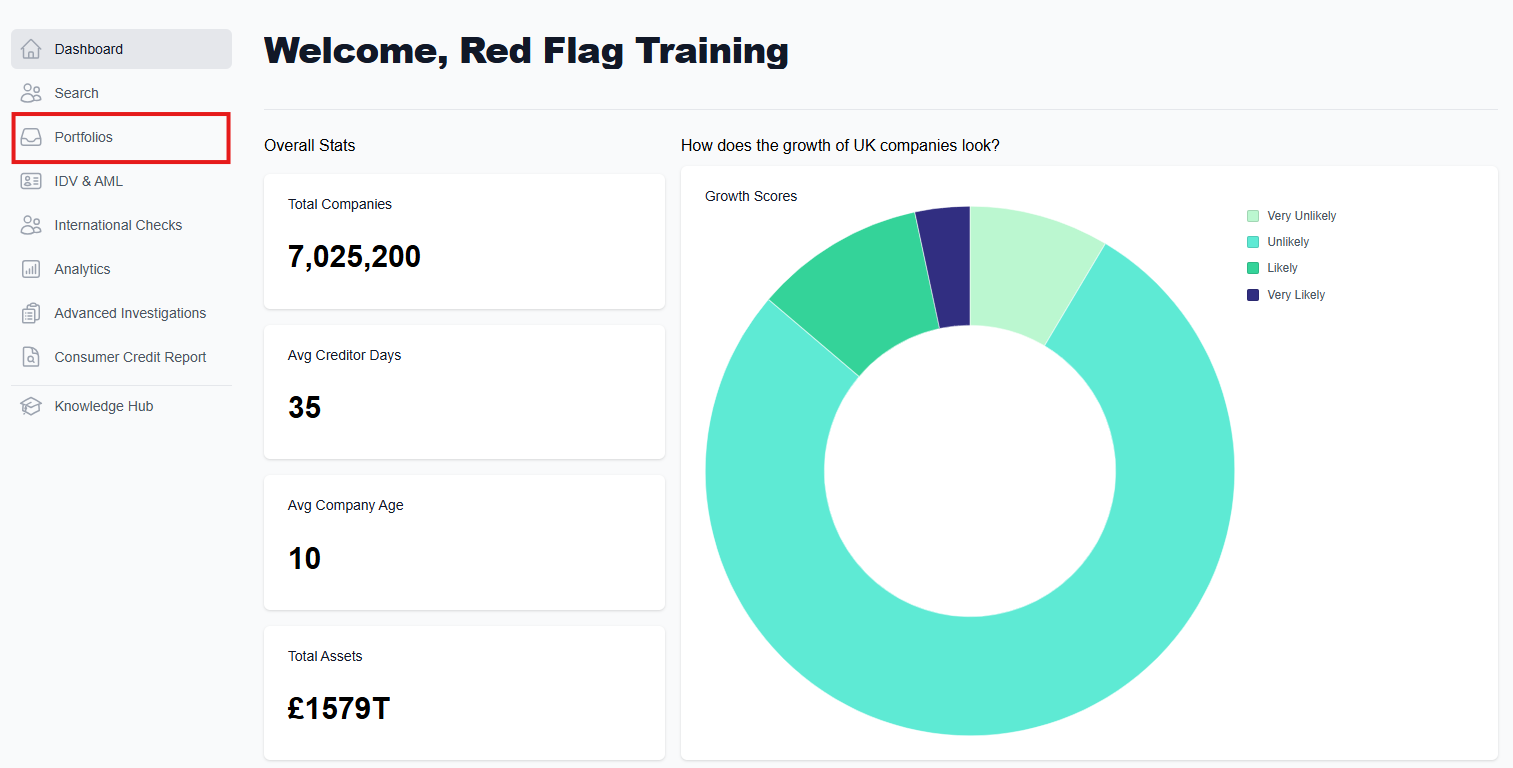
Having accessed the main dashboard, click on the 'Portfolios' button on the left hand side. This will take you to the 'Portfolio Manager' homepage.
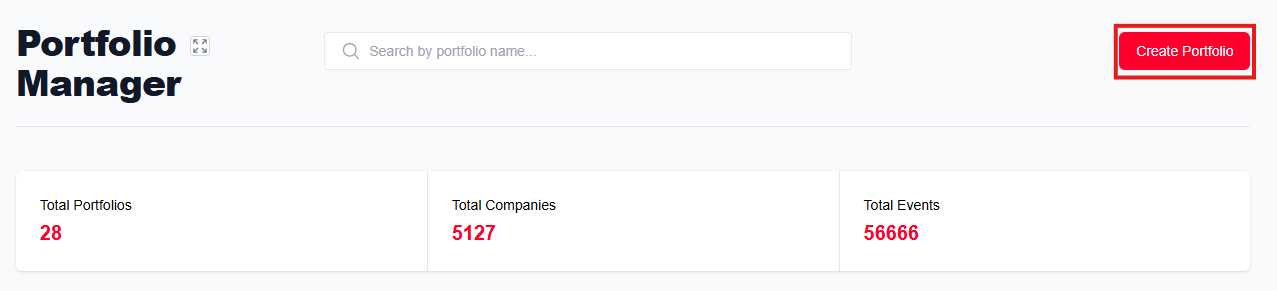
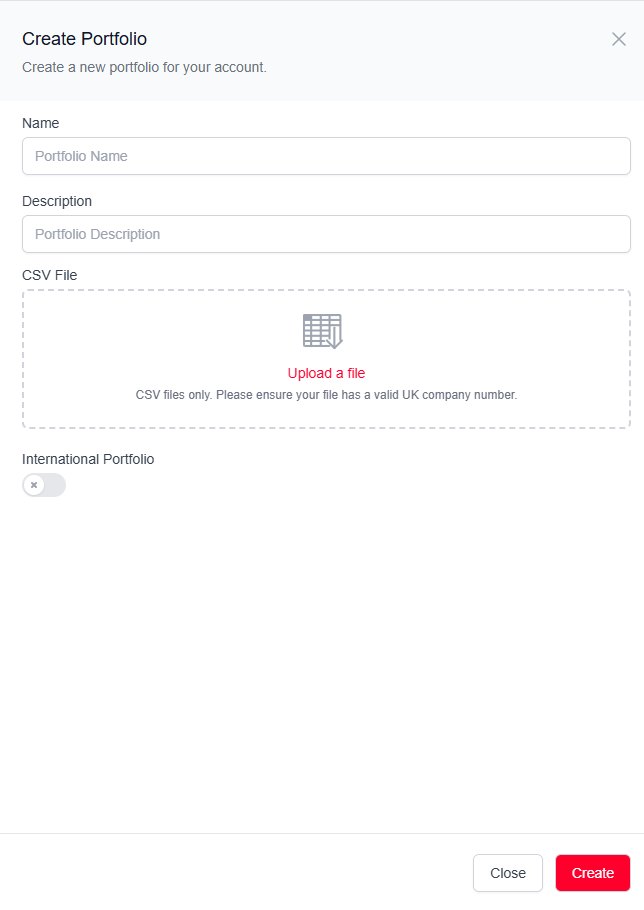
Click 'Create Portfolio' in the top right corner. This will bring up a menu on the right side where you can enter a name for the portfolio, enter a description of its contents, and choose to upload companies to monitor from a CSV file.
Uploading a CSV file is especially useful if you have an existing client list that you would like to monitor or if you are creating a large monitoring list. The Red Flag Alert system will be able to read the file and search for the relevant companies automatically as long as the company registration number is included.
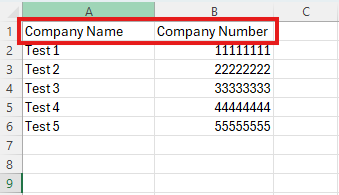
When adding a CSV, make sure the spreadsheet includes the company name and the company number with clearly defined headings.
When the file has been uploaded, an option will come up to choose which column includes the the company number.
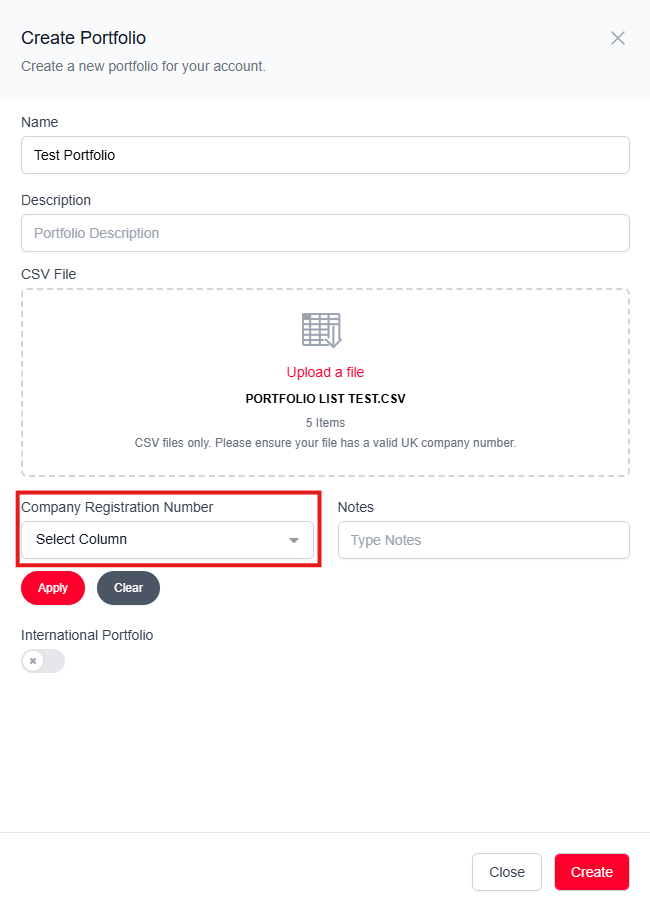
Once you have uploaded your CSV file, selected which column contains the company number, and named your portfolio, click 'Create'.
Creating a Portfolio: Searching for Companies
If you have carried out a search and wish to monitor all or some of the companies which appear in your search results, you can do so by adding them to a portfolio.
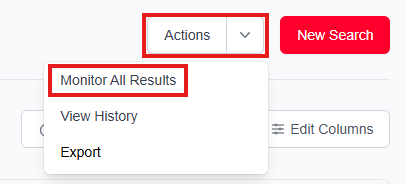
If you wish to add all results to a portfolio, click on 'Actions' in the top right corner, then select 'Monitor All Results'.
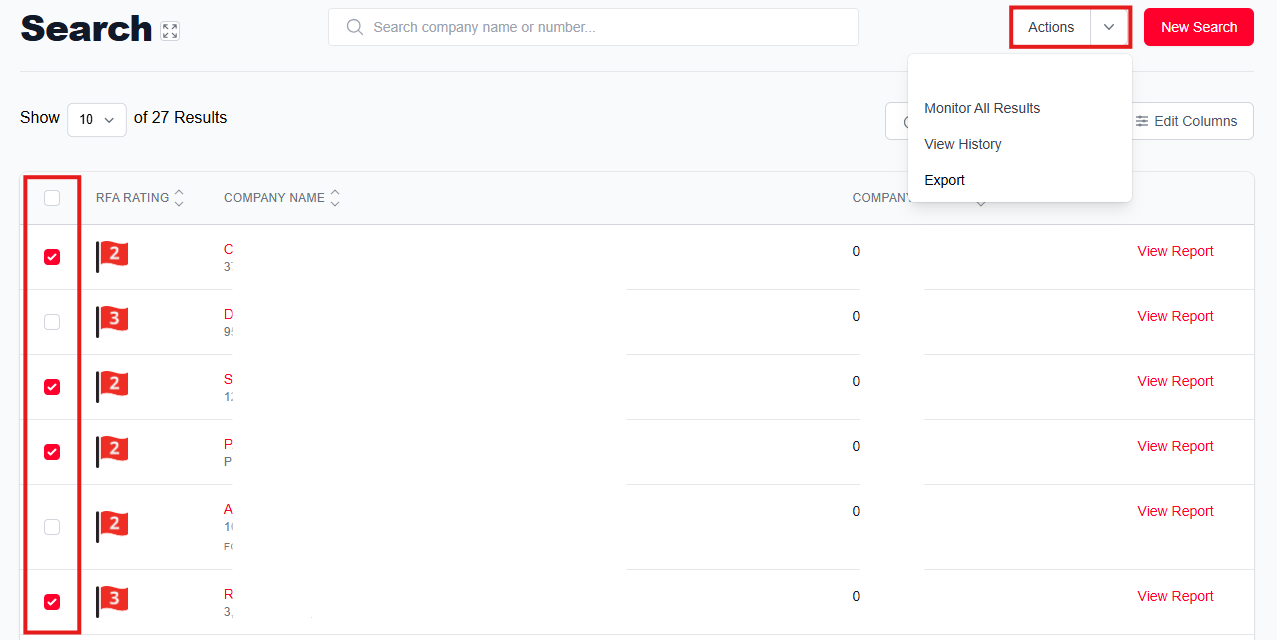
If you would like to add certain companies to a portfolio, select them by ticking the box on the left hand side. Then click on 'Action' in the top right corner and select 'Monitor Selected Companies'.
Choose your portfolio
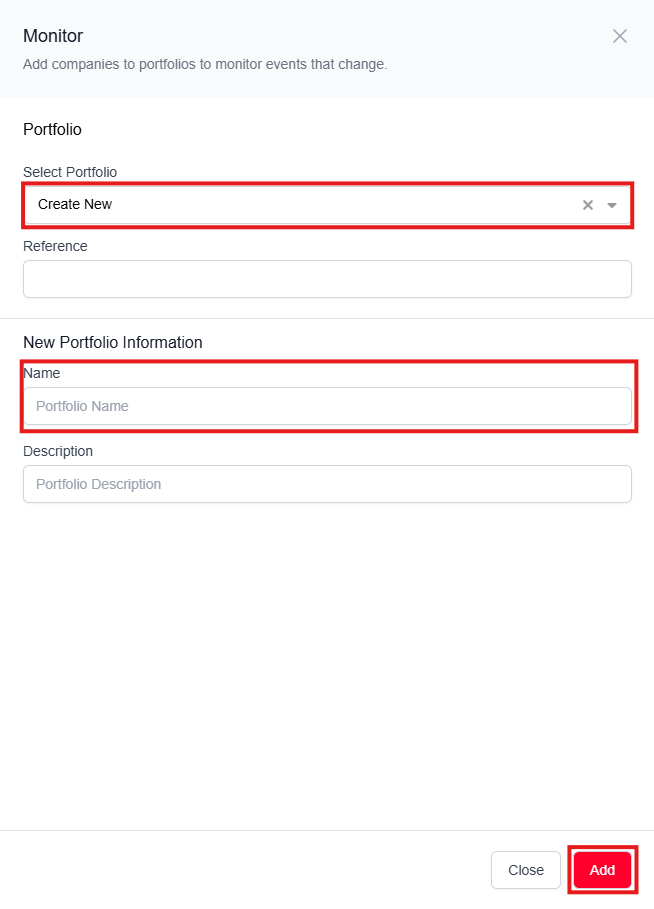
On the next page, select which portfolio you would like to add these companies to. To create a new portfolio, select 'Create New'.
Name your portfolio, add a description and reference if necessary, then click 'Add'.
Adding to the Portfolio
Once you have created a portfolio, it will appear in the Portfolio Manager where you will see a brief overview of each existing monitored company. From here, you can also view and edit each company.
You can add companies to an existing portfolio from any search. For guidance on how to use the advanced search features, click here.
To add companies to a portfolio, follow the same steps as you would to create a new portfolio from a search.
If you wish to add all results to a portfolio, click on 'Actions' in the top right corner, then select 'Monitor All Results'.
If you would like to add certain companies to a portfolio, select them by ticking the box on the left hand side. Then click on 'Action' in the top right corner and select 'Monitor Selected Companies'.
Choose your portfolio
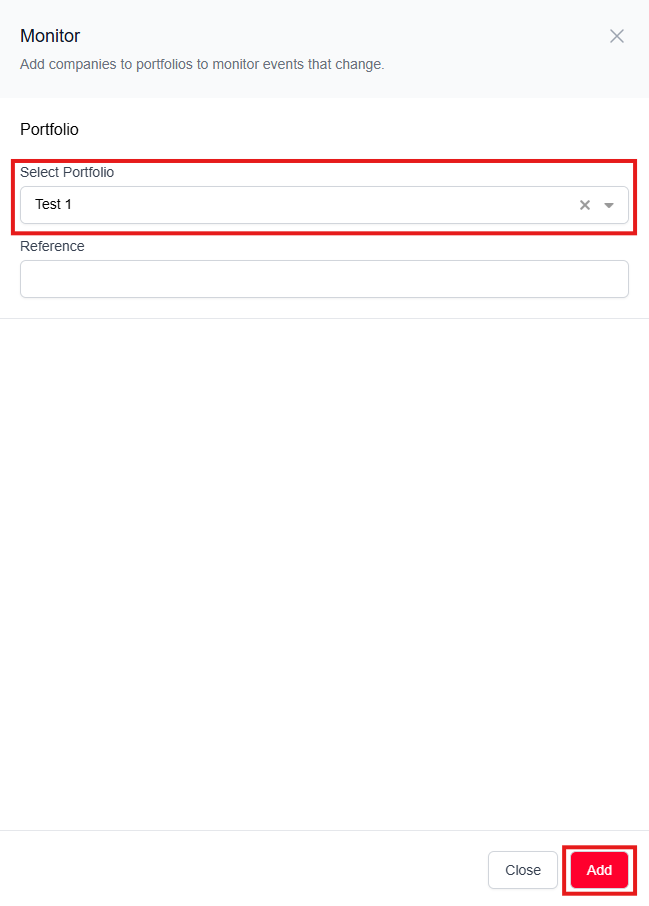
On the next page, select which portfolio you would like to add these companies to and add a reference if necessary, then click 'Add'.
Was this article helpful?
That’s Great!
Thank you for your feedback
Sorry! We couldn't be helpful
Thank you for your feedback
Feedback sent
We appreciate your effort and will try to fix the article