Once you have set up a portfolio you are able to customise who can see it, which events trigger alerts, who receives them and the priority of the alerts.
Customising a Portfolio
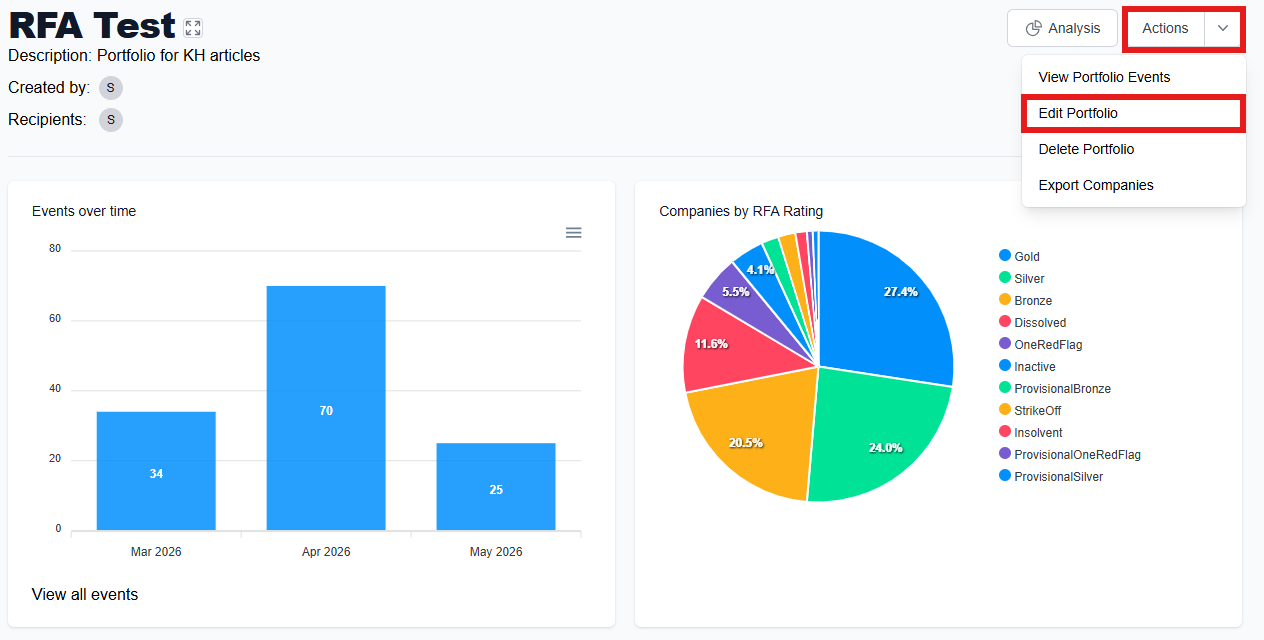
From the 'Portfolio Manager' page, find the portfolio you would like to modify. You can use the 'Filter' or 'Sort' feature to help you, or use the search bar. Click to enter the portfolio, then click 'Actions' in the top right corner and select 'Edit Portfolio'.
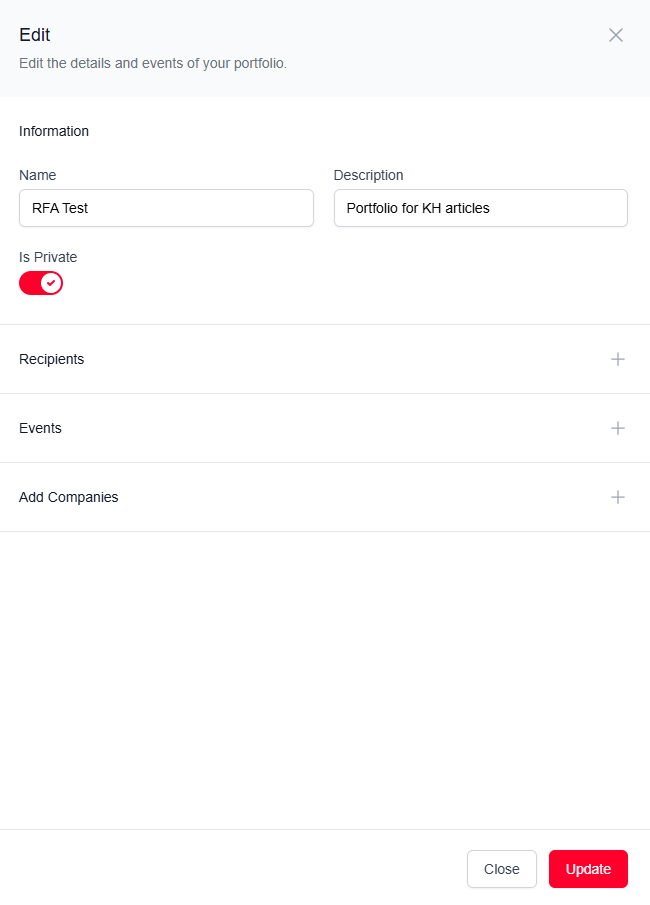
Once in the 'Edit Portfolio' menu you will be able to change information such as name and description, as well as who is listed as a recipient, what events you have set up, and the ability to add more companies by uploading a CSV file.
You can use the 'Is Private' toggle to determine whether the portfolio is private to you or can be accessed by other users from your organisation. Note that even if others have access to your portfolio, only you can edit it.
Adding recipients
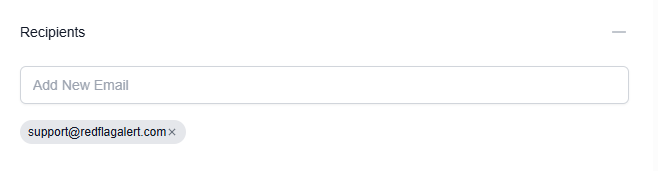
Adding recipients to your portfolio means that you can allow other people to receive monitoring notifications about the companies in your portfolio. Your chosen recipients do not need to have Red Flag Alert accounts to receive these notifications, however they will not be able to view the portfolio itself without having access to the system.
To add a recipient, click the plus to open the 'Recipients' box and enter the email address of your chosen recipient, then press 'Enter' on your keyboard. If the email address has been recognised, it will appear in a grey box. You can remove recipients by clicking 'X' in any existing grey box.
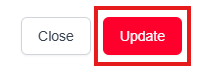
Once you are satisfied with your edits, press 'Update' to save them.
Editing event notifications
When a portfolio is created, alerts are set as active for all events by default. You can remove events by clicking the 'X' in the grey box of any event in the list, or add more by selecting them from the drop down menu.
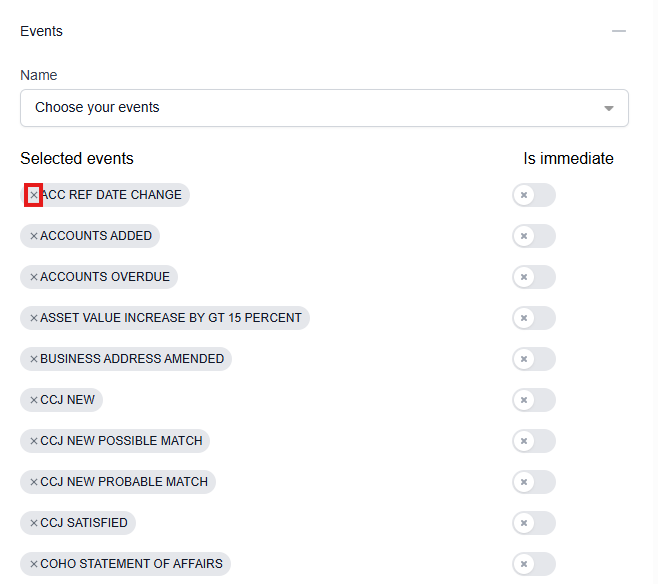
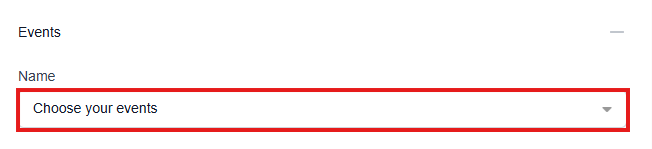
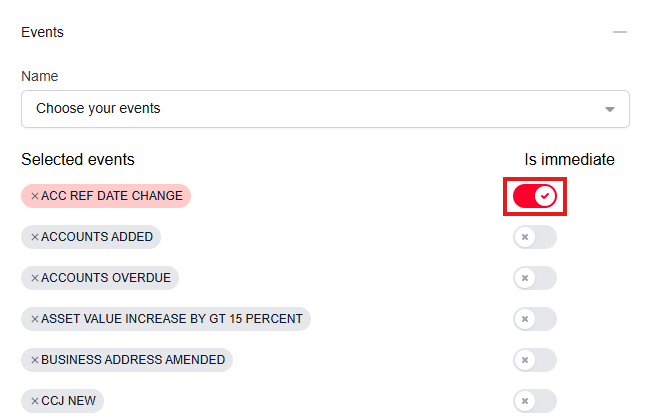
To avoid inbox clutter, the Red Flag Alert system sends a daily round up email of alerts for each portfolio (if there are events to notify you of). If you would like to receive notifications for a particular event immediately, you can toggle the 'Is immediate' button to 'on'. This allows you the flexibility to determine which events are most critical to your business.
Once you are satisfied with your edits, press 'Update' to save them.
Adding companies via CSV file
You are able to add new companies to your portfolio at any time by uploading them in a CSV file. The Red Flag Alert system will be able to read the file and search for the relevant companies automatically as long as the company registration number is included.
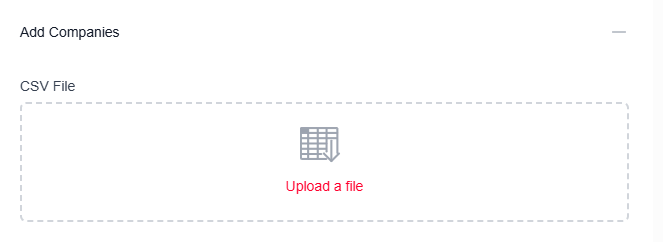
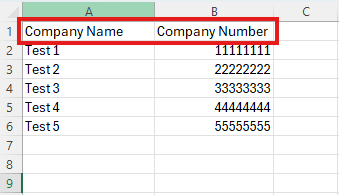
When adding a CSV, make sure the spreadsheet includes the company name and the company number with clearly defined headings.
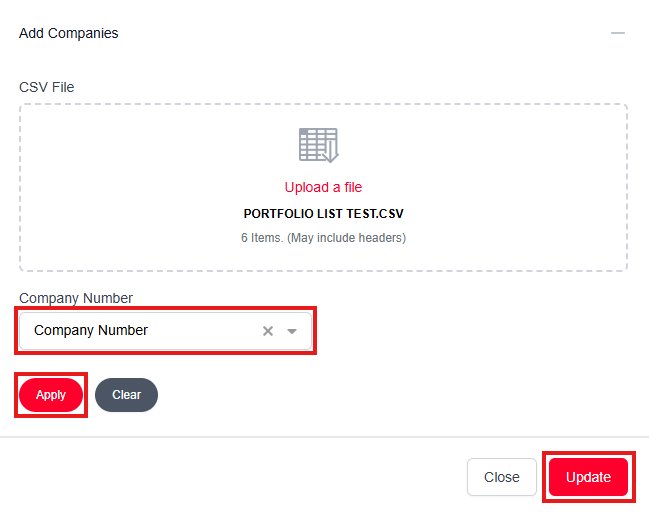
When the file has been uploaded, an option will come up to choose which column includes the the company number. When you are ready, click 'Apply' to upload the file, then click 'Update' to save your changes.
Was this article helpful?
That’s Great!
Thank you for your feedback
Sorry! We couldn't be helpful
Thank you for your feedback
Feedback sent
We appreciate your effort and will try to fix the article