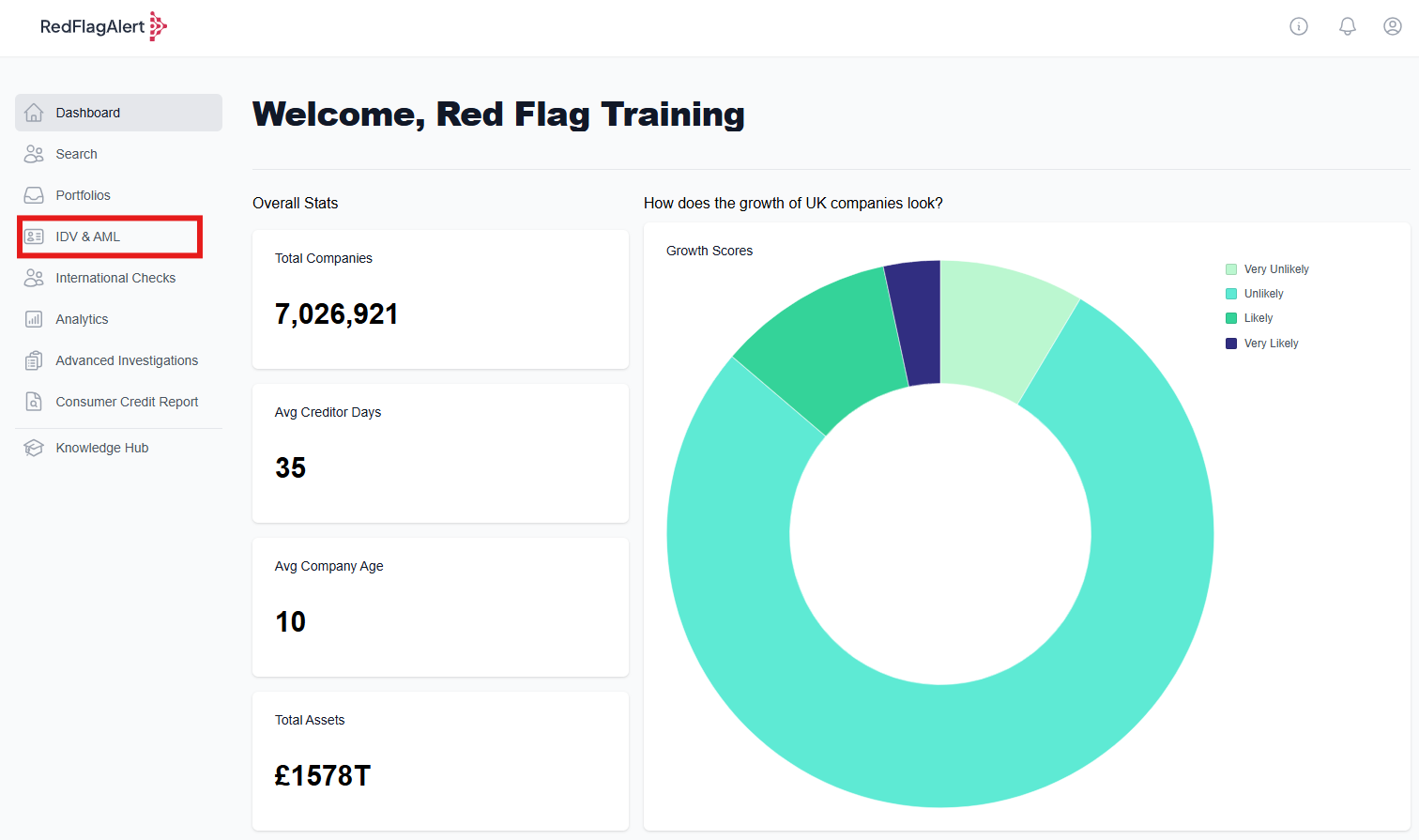
To run an IDV/AML check within the platform, first navigate to the IDV & AML tab from the side of your RFA dashboard.
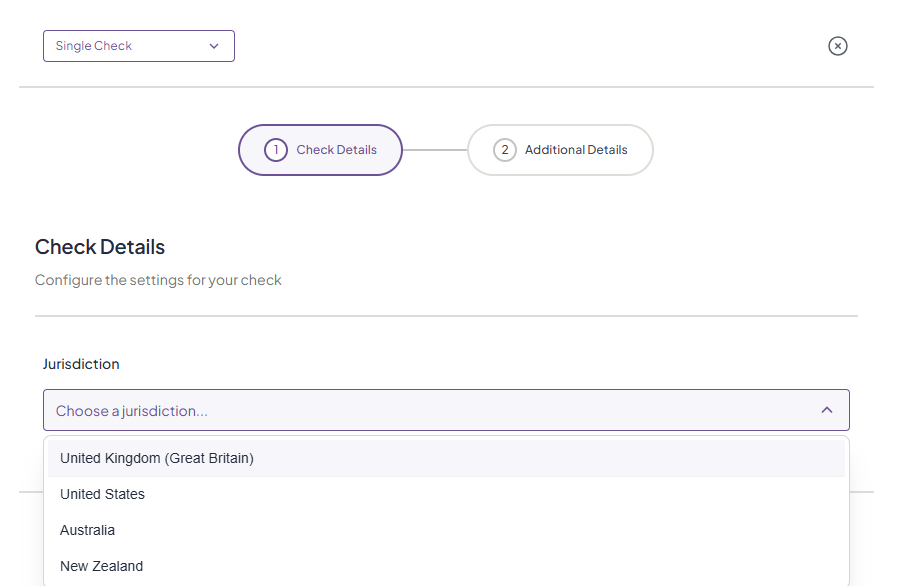
To send out a single check, select 'Single Check' from the top right corner of the page.

Single Checks mean you send out one check at a time, whereas Bulk Check allows you to submit a spreadsheet and send out all the checks at once.
1. First, choose the jurisdiction for your check.
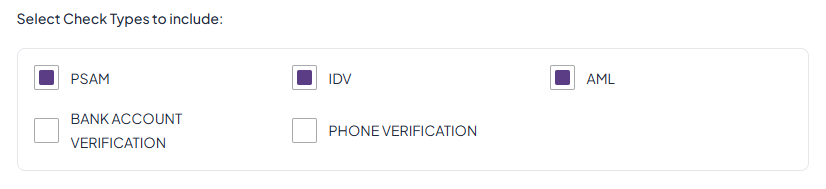
2. Select the check types you would like to include. Read more about the types of checks here.
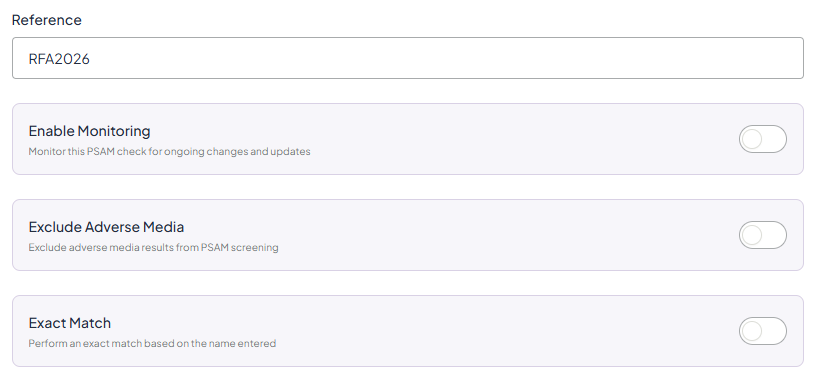
3. Write a reference for your records, and choose whether you would like to Enable Monitoring (please note this is only available for PSAM), Exclude Adverse Media, or enable Exact Match.
4. Adjust the level of fuzziness: the lower the level, the higher the match sensitivity, and the higher the level, the fuzzier the results. Read more about fuzziness here.

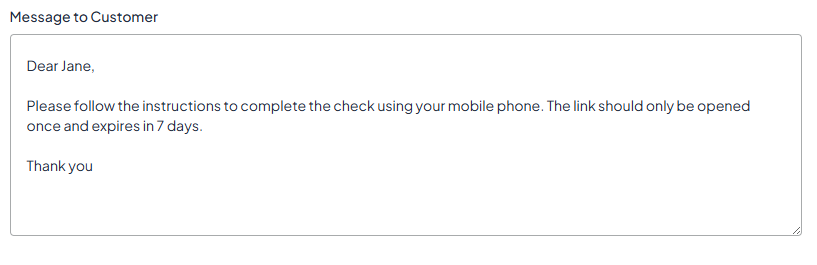
5. Write an optional message for your customer. We recommend that you include a message to let them know what is required. Once you have done this, click 'Next'.
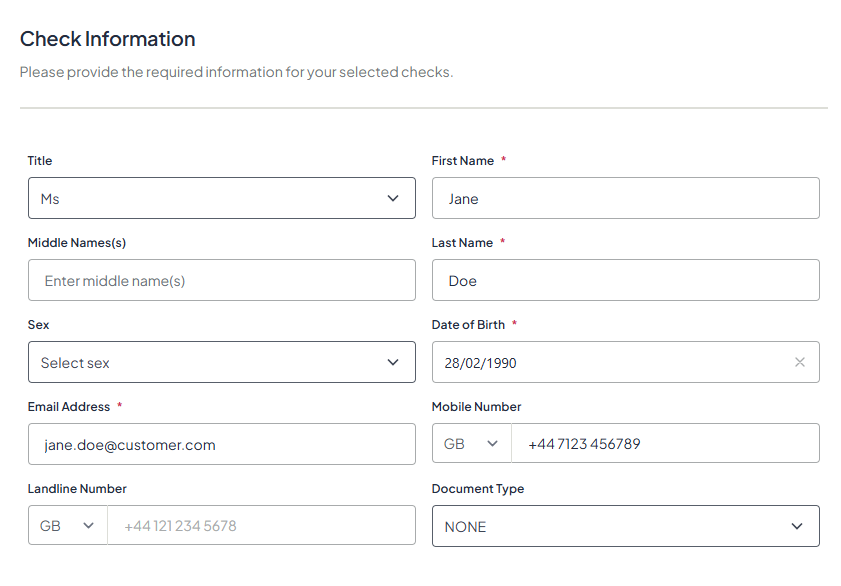
6. In the next screen, fill out the details of the person you are sending the check to. More information is better, but you are only required to fill out the information marked with a red * - all other fields are optional to fill out.
Make sure to double check the email/mobile number for your client is correct, as this cannot be amended later.
For 'Document Type', we recommend selecting 'None' if you do not know which type of document your client will choose to use (Driving Licence or Passport for UK Checks).
When you have done this, click 'Next'.
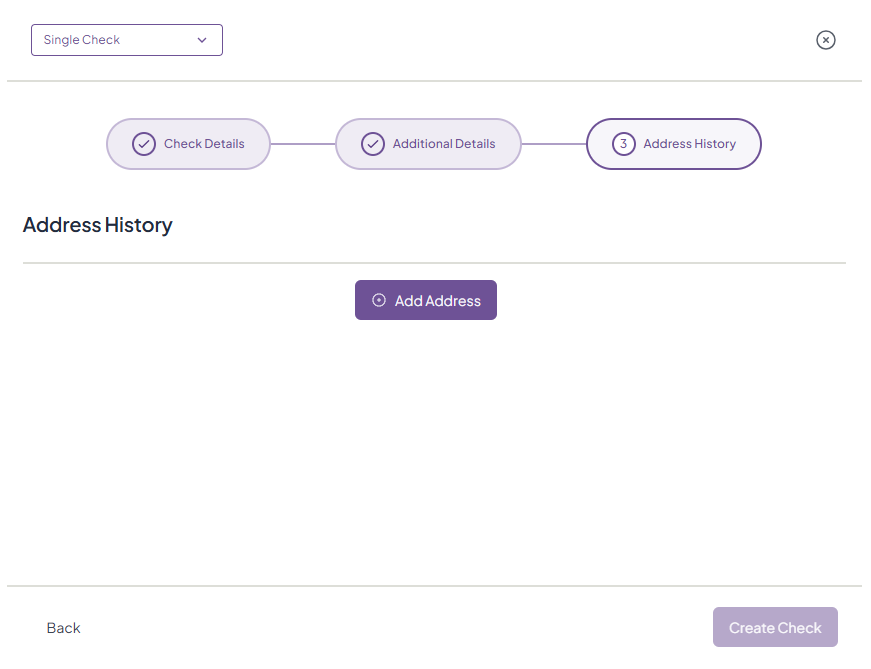
7. Depending on the type of check, you may be required to fill out additional information on the check recipient, such as their address history.
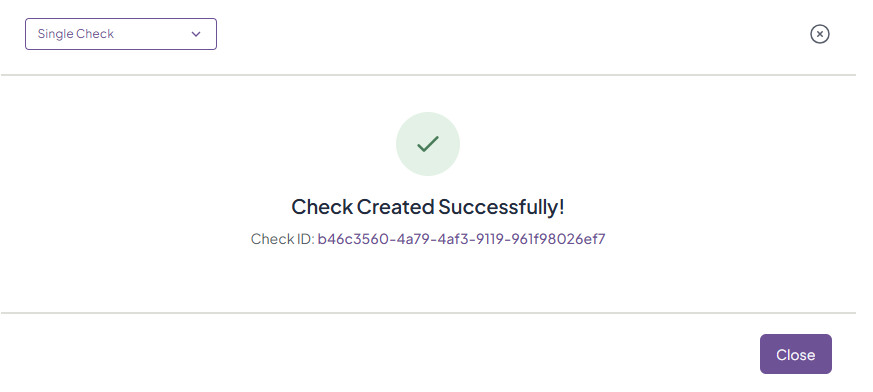
8. Once complete, click 'Create Check' to send to your client - you'll then see 'Check Created Successfully!' with the Check ID.
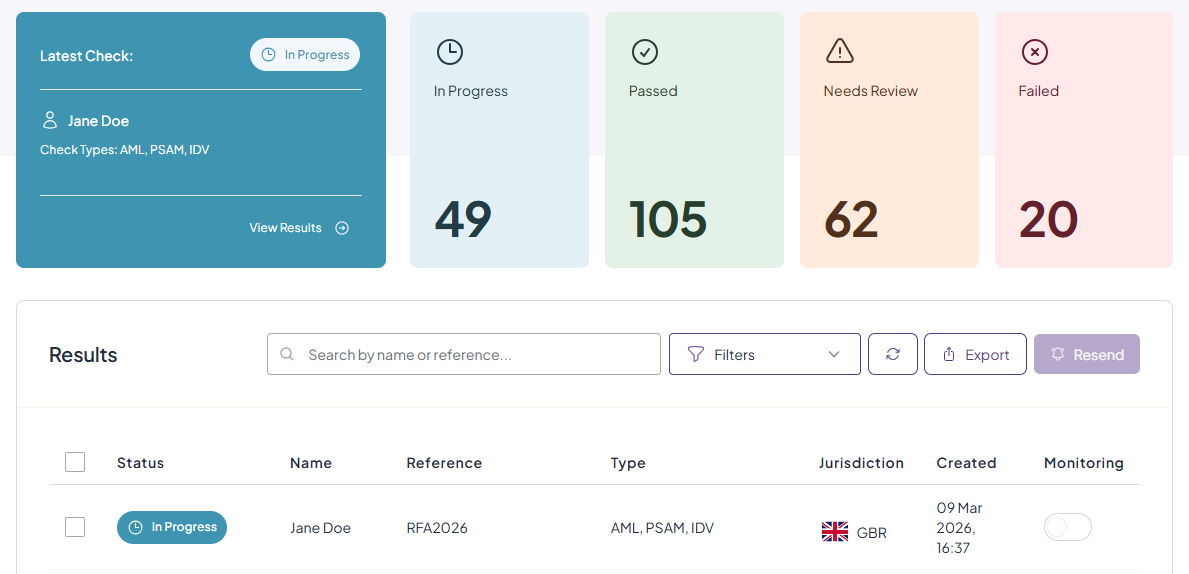
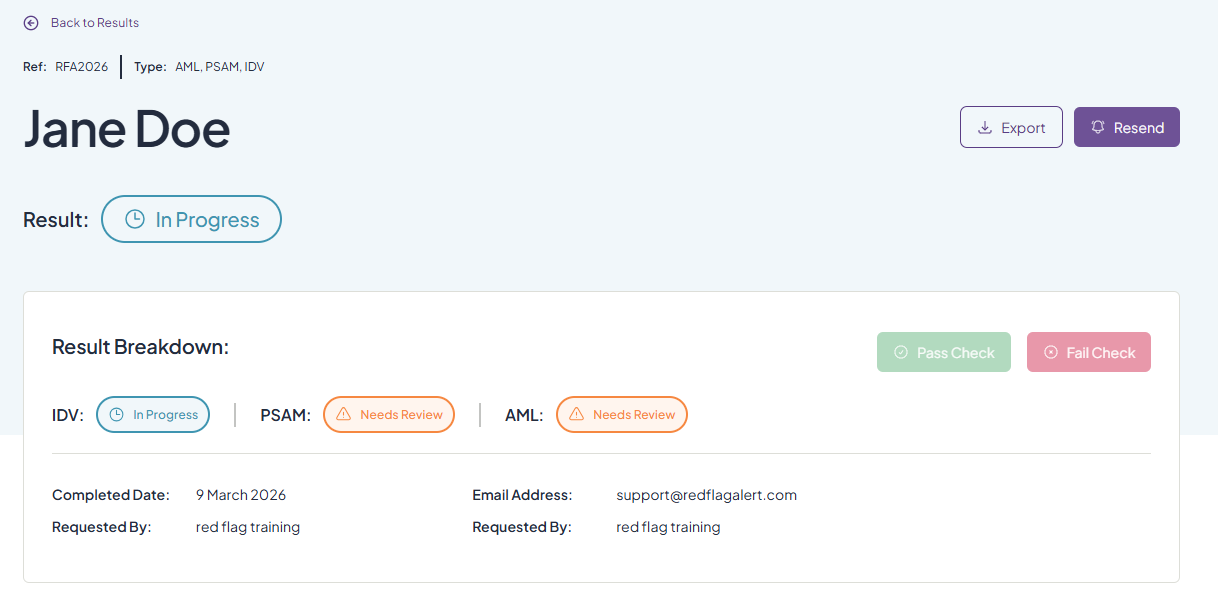
9. The check will then appear in the dashboard with the status and summary information in both the 'Latest Check' box and the check list. You can click into the report to make notes, see logs, and view the result once the client has completed the check.
Was this article helpful?
That’s Great!
Thank you for your feedback
Sorry! We couldn't be helpful
Thank you for your feedback
Feedback sent
We appreciate your effort and will try to fix the article