If you are having difficulty logging in to the platform, we recommend that you try resetting your password to regain access.
How to reset your password
On the Red Flag Alert home page, click 'Login' in the top right hand corner.
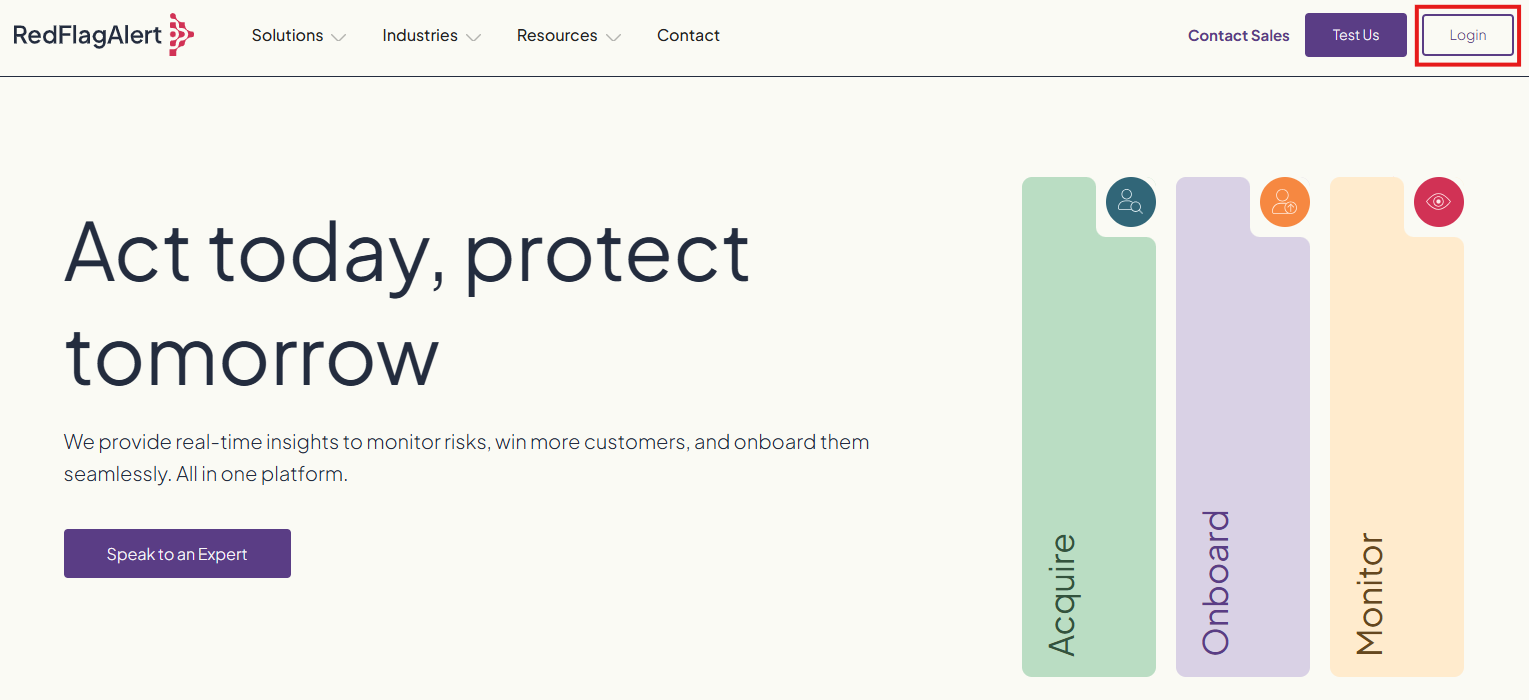
If you are automatically logged in, either log out or open an incognito browser and repeat this step again so that you land on the log in page.
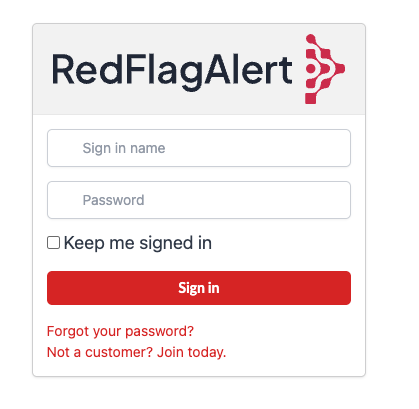
Click ‘Forgot your password?’ and enter the email address associated with your Red Flag Alert account.
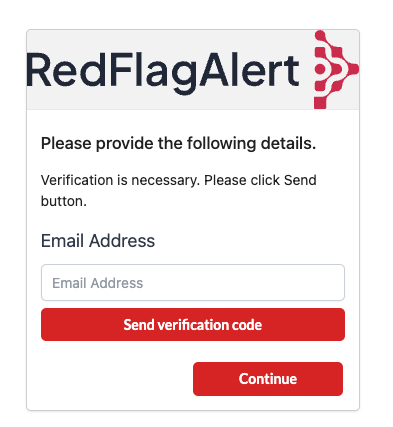
Click 'send verification code’ and check your email inbox for an email containing your 6-digit code.
If you are unable to find the email, check your junk folder and any email filters. You can also click ‘Send new code’ to receive a new one.
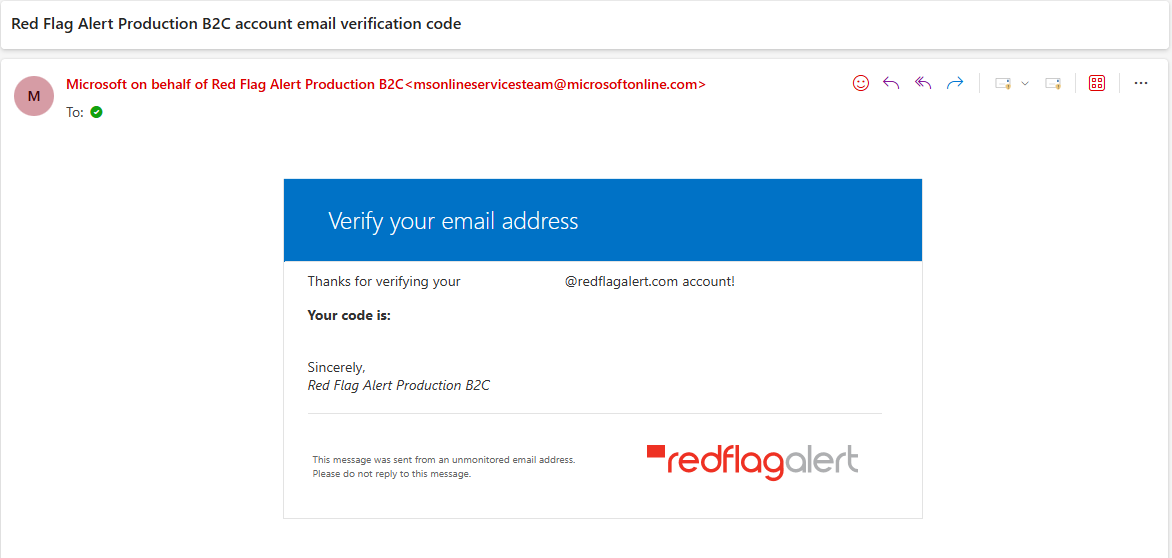
Copy the code and go back to Red Flag Alert, enter it in the 'Verification code' box and click 'Verify code'.
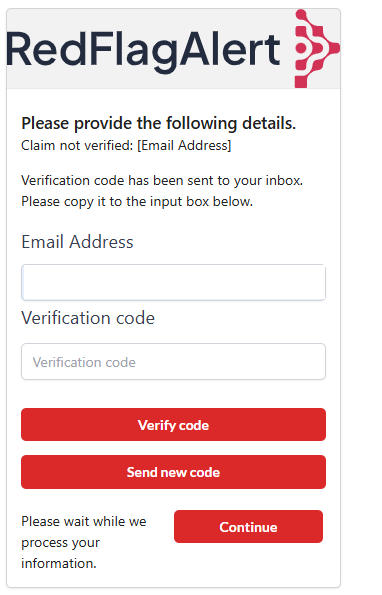
Once the code has been verified, you will be able to choose a new password.
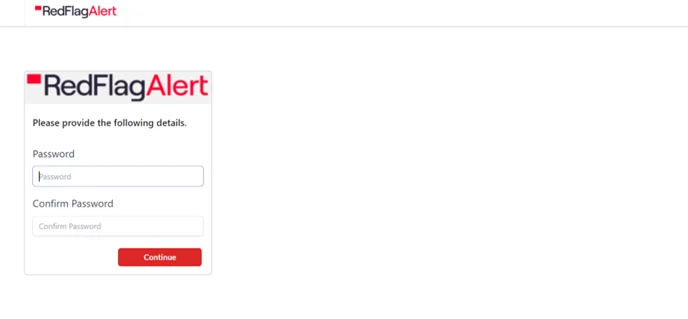
You will then be redirected back to the original login page where you should be able to login with your new password.
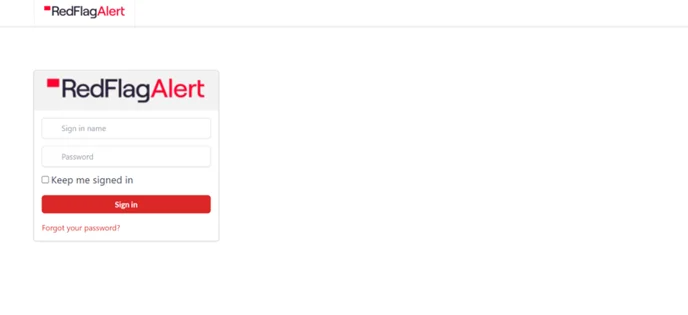
You can tick 'Keep me signed in' to avoid having to log in every time you want to use Red Flag Alert.
Was this article helpful?
That’s Great!
Thank you for your feedback
Sorry! We couldn't be helpful
Thank you for your feedback
Feedback sent
We appreciate your effort and will try to fix the article