Exporting a company report from Red Flag Alert is quick and simple.
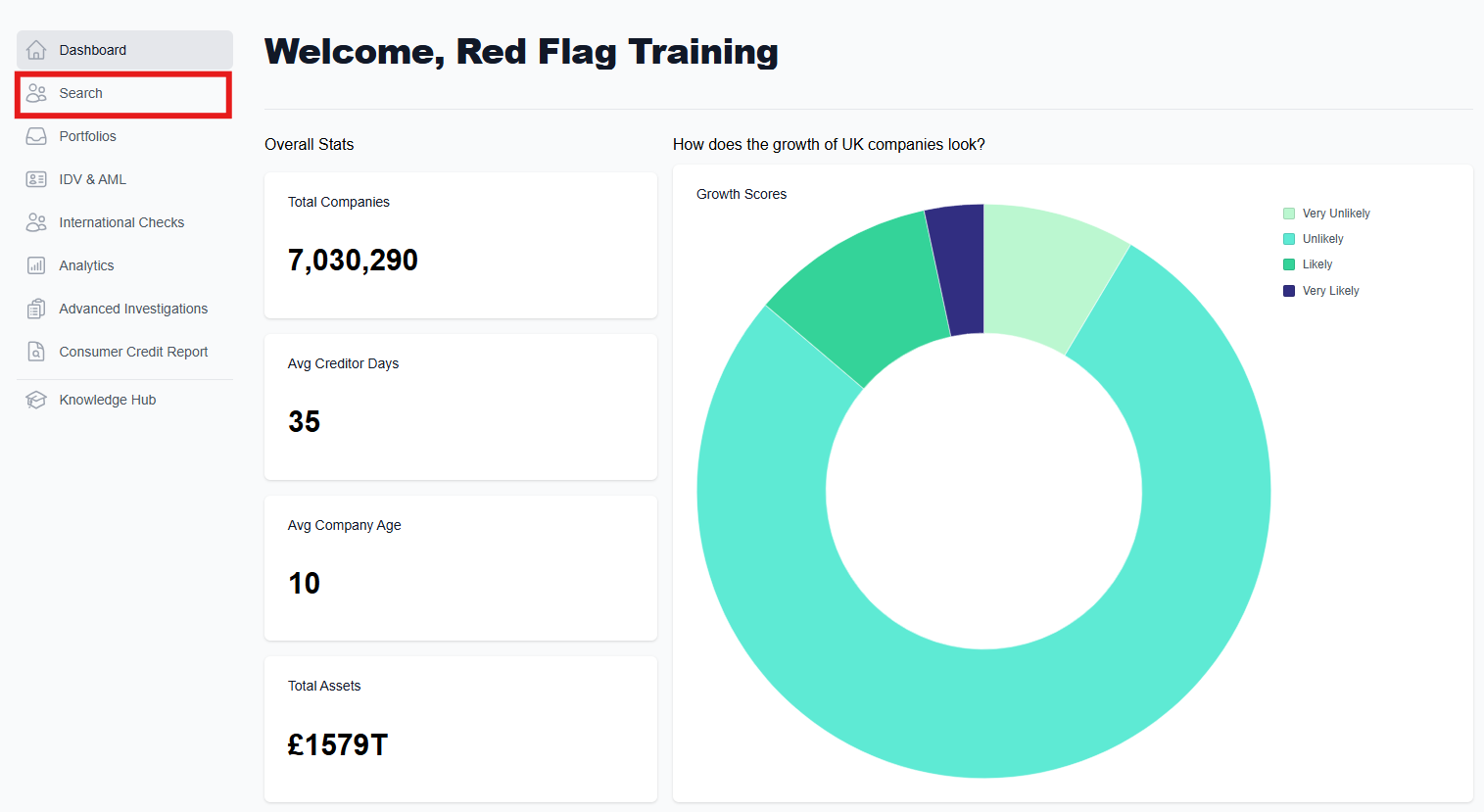
From your dashboard, click 'Search'.
Enter your search criteria: you can search for a particular company via the search bar or use the advanced search parameters to search for several at once. For guidance on how to use the search bar, click here, and for guidance on how to use the advanced search parameters to search for companies, click here.
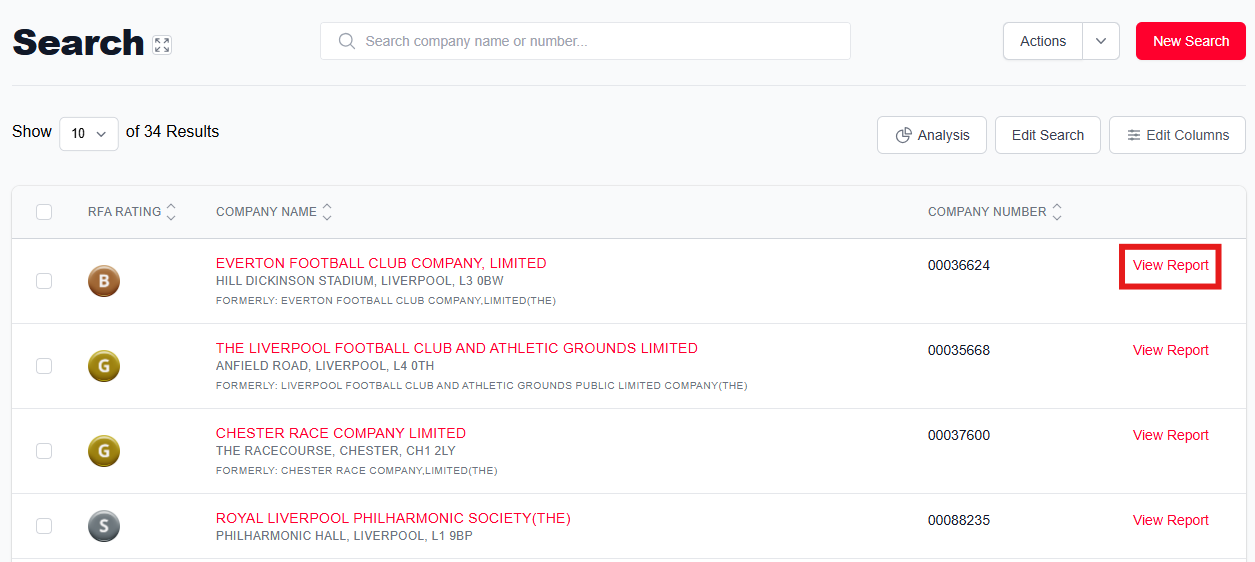
Once you have the results, choose which company you would like to view, and click 'View Report' on the right hand side.
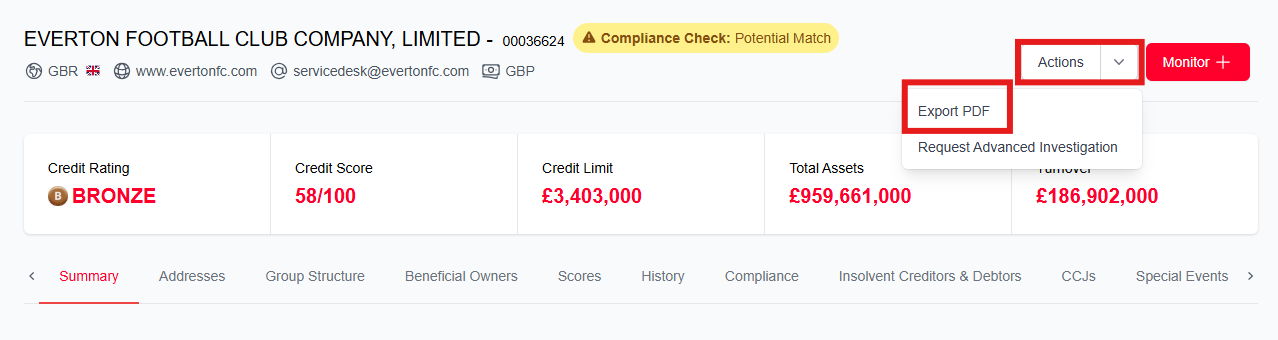
If you wish to export the report, click to expand the 'Actions' menu, and choose 'Export PDF'.
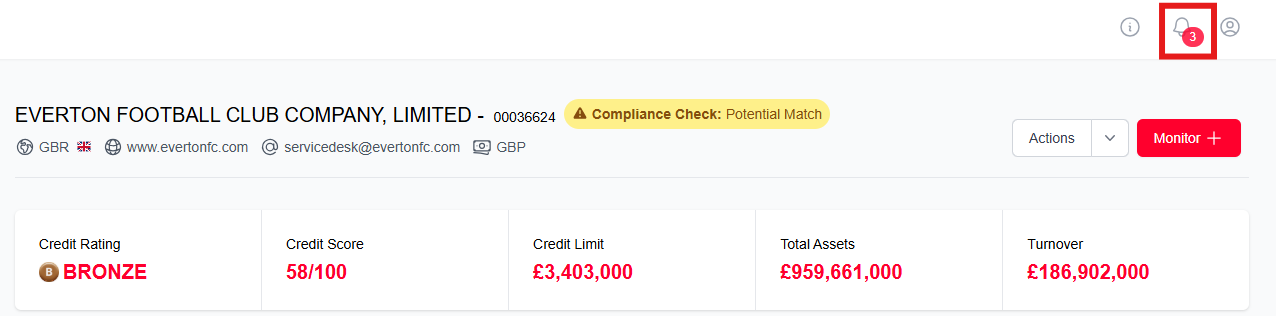
The bell icon in the top right-hand corner will show a green icon and a confirmation message will appear to confirm that the export has been successful. Please note that larger files can take longer to prepare for export.
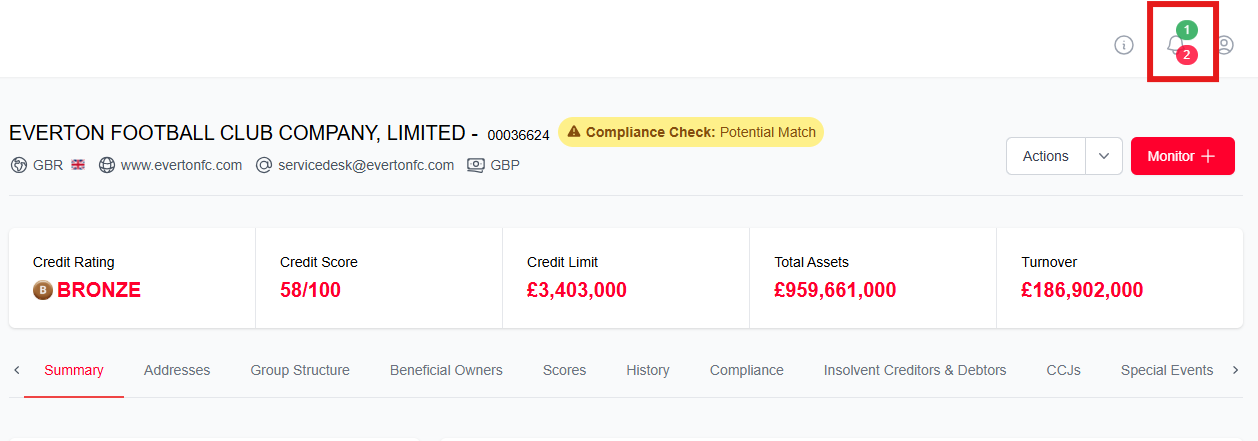
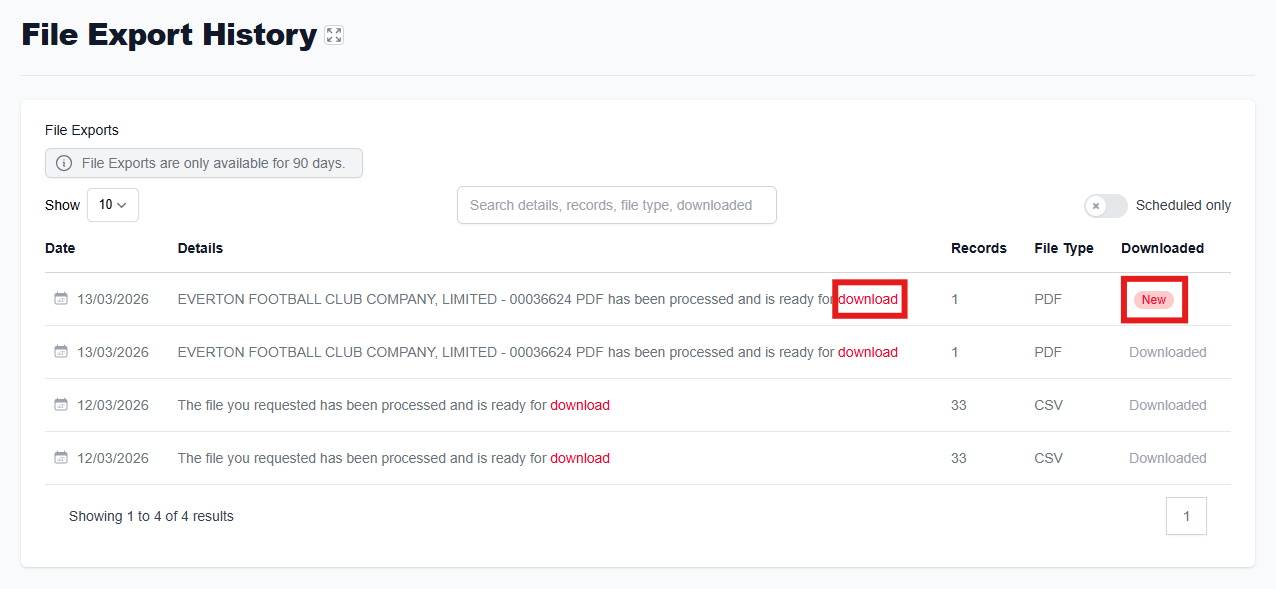
Once the bell icon changes to red, you can download the PDF file to your computer. Click on the bell icon to view the file export history.
Click 'Download' to the right of the report.
Once the file is downloaded, click 'Open File' to view the report in PDF format.
Was this article helpful?
That’s Great!
Thank you for your feedback
Sorry! We couldn't be helpful
Thank you for your feedback
Feedback sent
We appreciate your effort and will try to fix the article