Once you have completed your search, you are able to export your results into a CSV file. There is a standard limit of 5,000 companies per export, though this can be extended by your Account Manager.
How to Export Search Results
Once you have carried out your search and have your results, click on 'Actions' in the top right corner, then select 'Export'.
For guidance on how to use the advanced search features, click here. For guidance on how to view your results, click here.
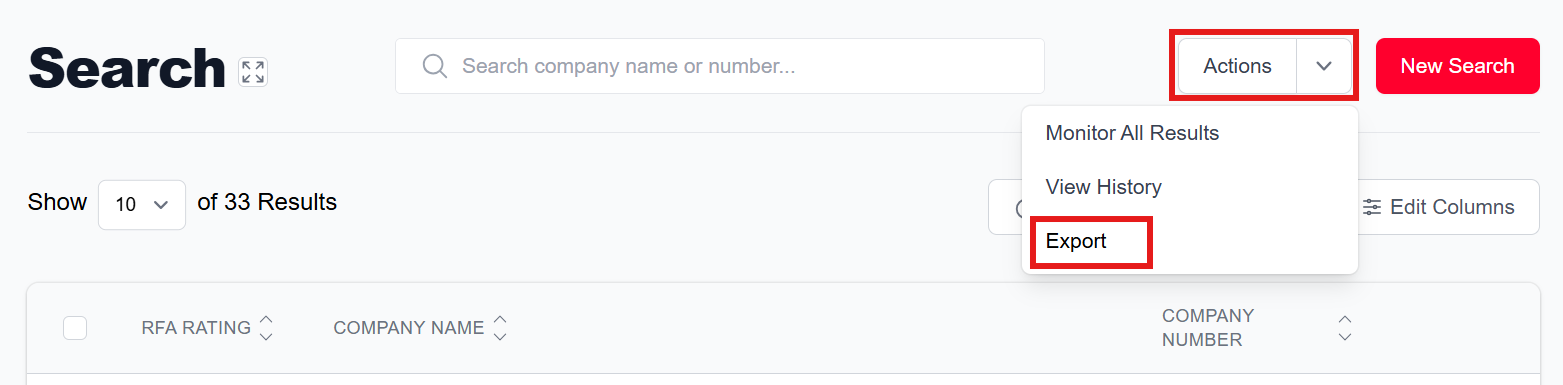
Clicking on 'Export' will bring up a window in the middle of the screen. Here you can determine what information will be included in your CSV file.
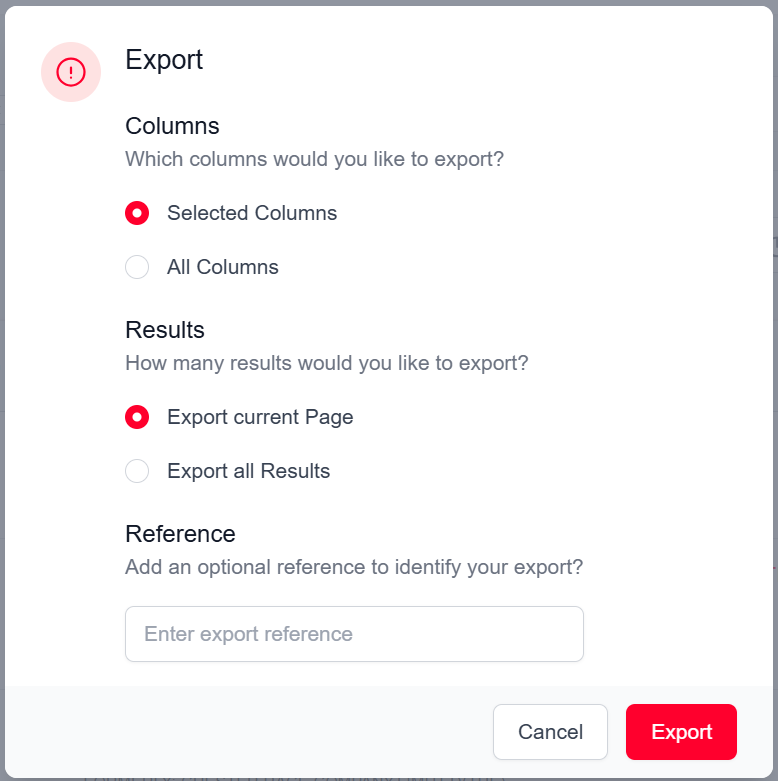
The columns section allows you to choose which columns you would like to export.
- Choose 'Selected Columns' to export only the chosen information that has been toggled 'on' in the 'Edit Columns' menu (covered below), accessible on the results page. Editing these is explained further below.
- Choose 'All Columns' to export all information on the companies in the search result.
The results section allows you to choose whether you want to export just the current page being displayed, or if you want to export all results.
Once you have made your selection, press export to begin the download. This will be shown as a green notification above the bell symbol in the top right.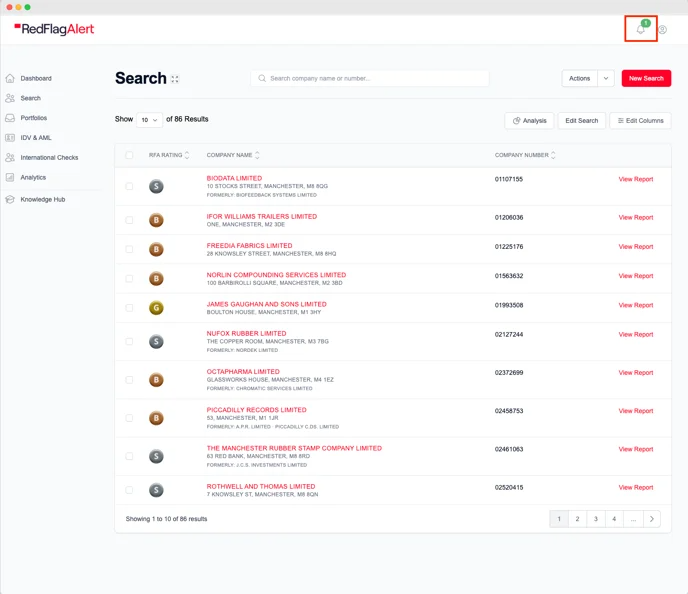
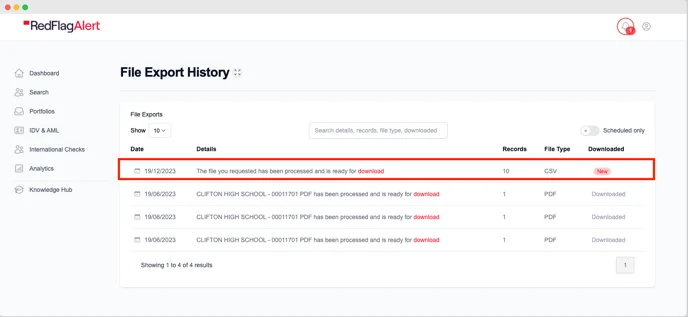
Once the download has completed, the green notification will change to red. Clicking on the bell will take you to the download page, where you will be able to click on 'Download' to save the excel spreadsheet.
Editing Export Columns
To determine what information is put into the CSV, you can edit the columns of the search results. By clicking on 'Edit Columns' in the top right of the results page, a box will appear on the right side of the webpage. This will allow you to define what information is shown on the results page.
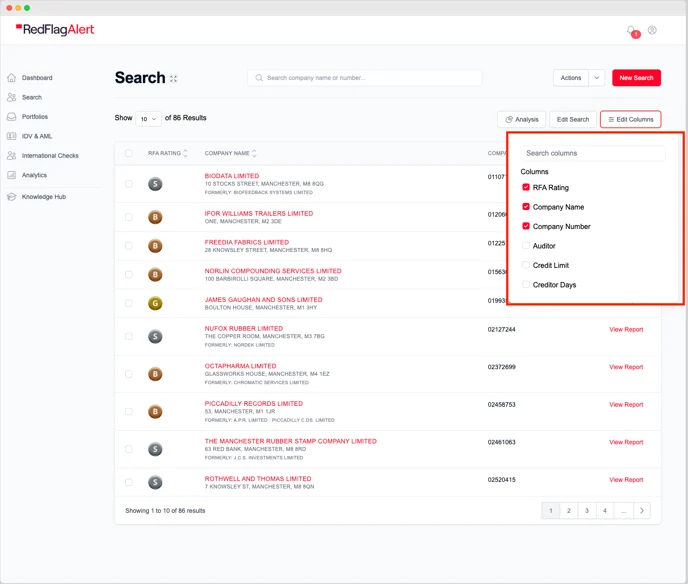
Click on the desired filters to add them. When you click the desired box, the relevant column will be shown for each company. The default fields shown are RFA Rating, Company Name, and Company Number.
When you then go to export, click on 'Selected Columns' instead of 'All Columns' to retain only the filters you have chosen. This will be reflected in the downloaded CSV.
Was this article helpful?
That’s Great!
Thank you for your feedback
Sorry! We couldn't be helpful
Thank you for your feedback
Feedback sent
We appreciate your effort and will try to fix the article