To add and manage users, start in the 'User Management' portal. You can access 'User Management' from the RFA platform by clicking on the icon in the top right corner and selecting 'User Management'. Alternatively, you can use this link.

Adding users
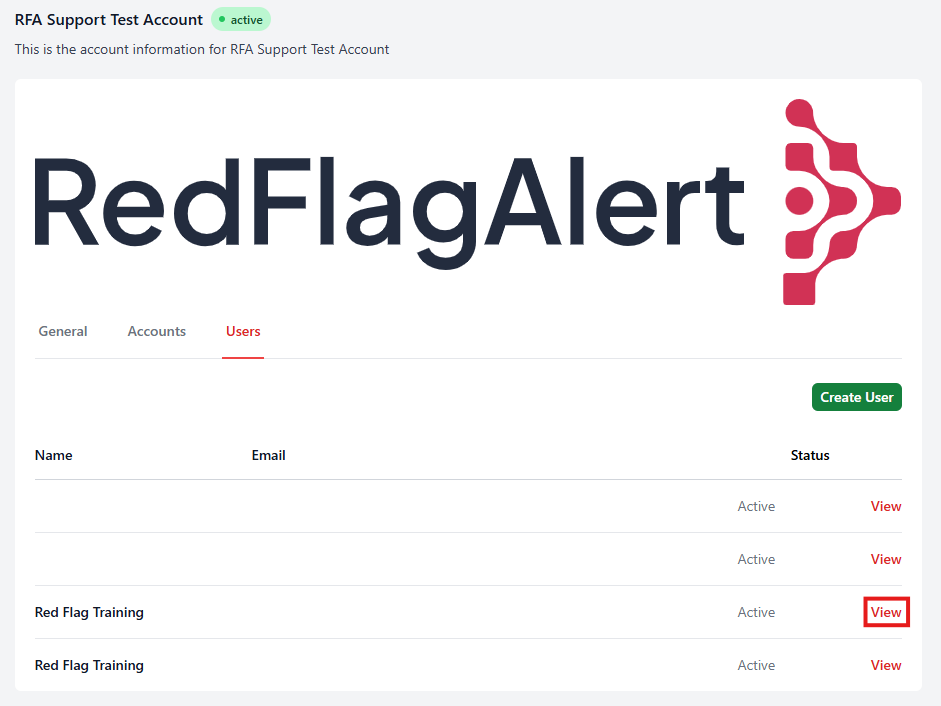
1. Navigate to the 'Users' section.
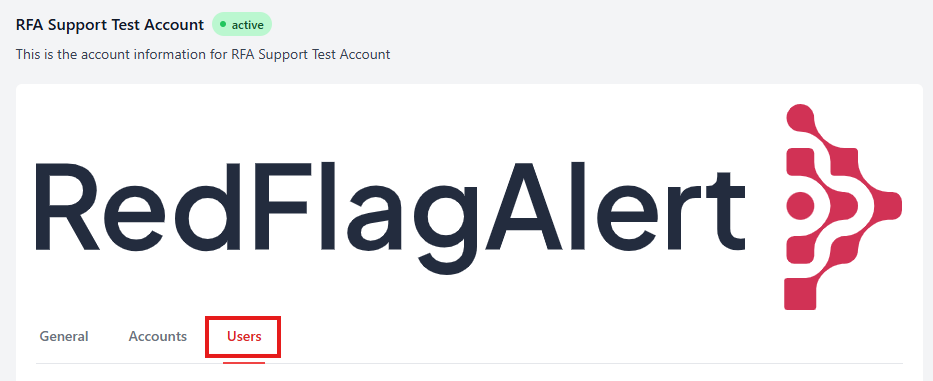
2. Click 'Create User'.
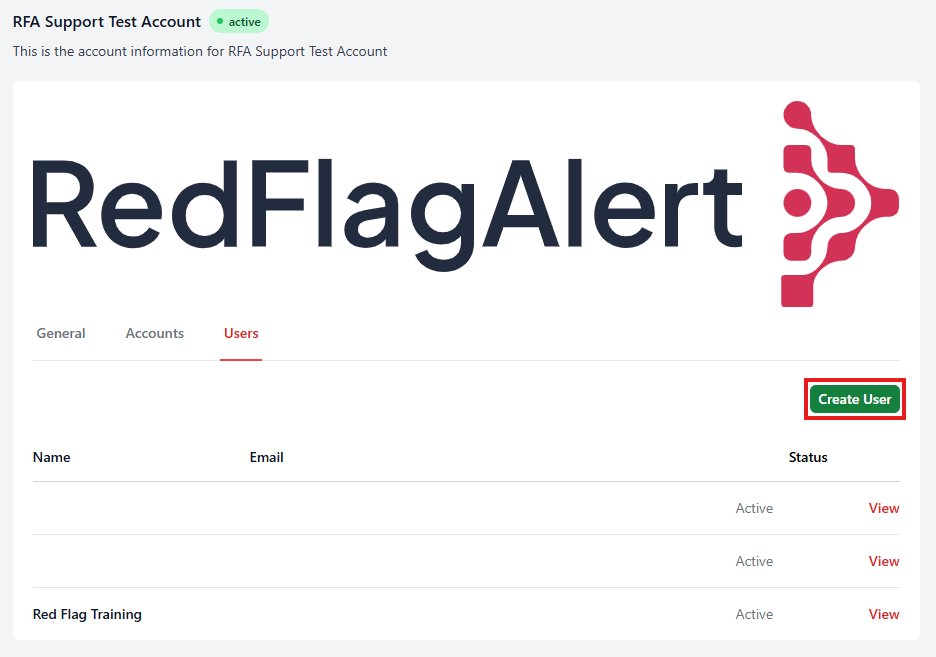
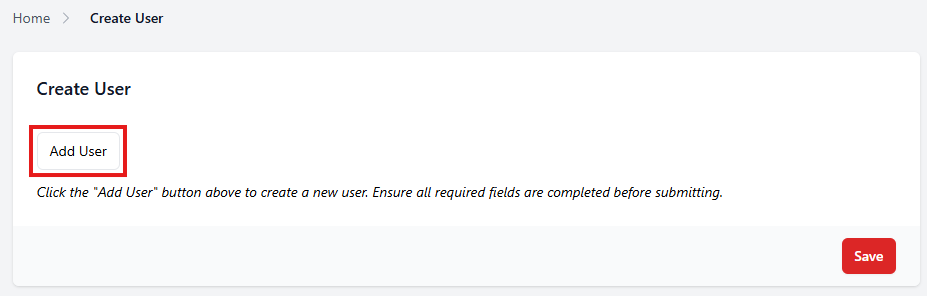
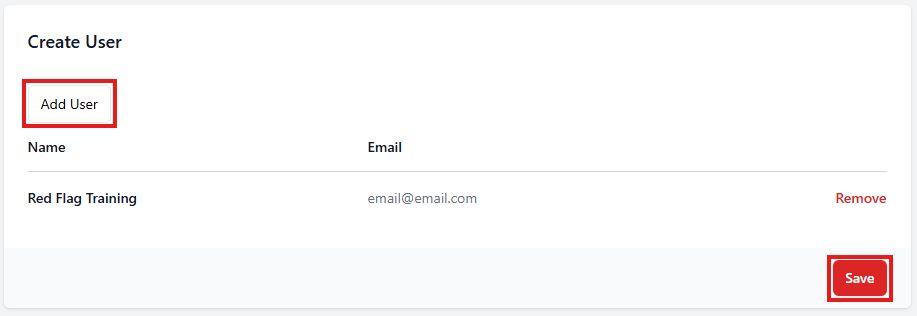
3. Click 'Add User'.
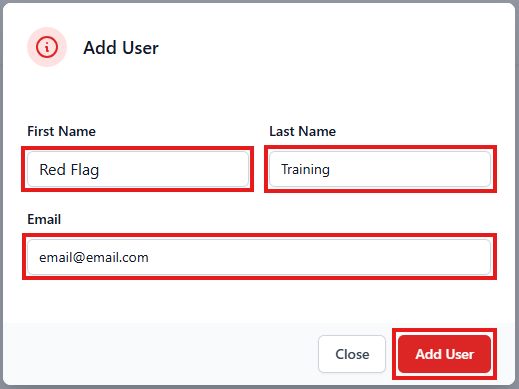
4. Enter the user's first name, last name, and email address, then click 'Add User'.
5. If you need to add more than one user, click 'Add User' to add another. When you are finished, click 'Save'.
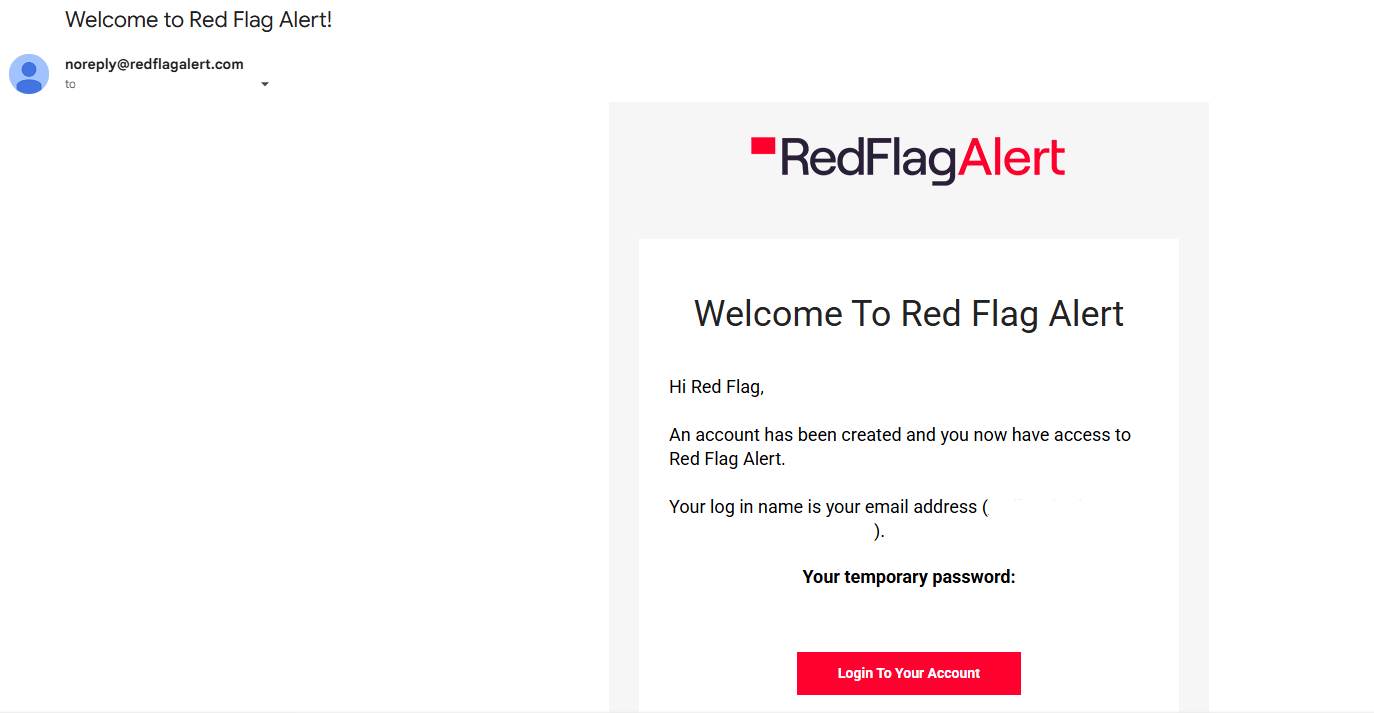
6. The user receives a welcome email from noreply@redflagalert.com with a temporary password which will allow them to log in for the first time.
Managing users
From the 'Users' tab of the 'User Management' portal, select the user account you would like to manage by clicking 'View'.
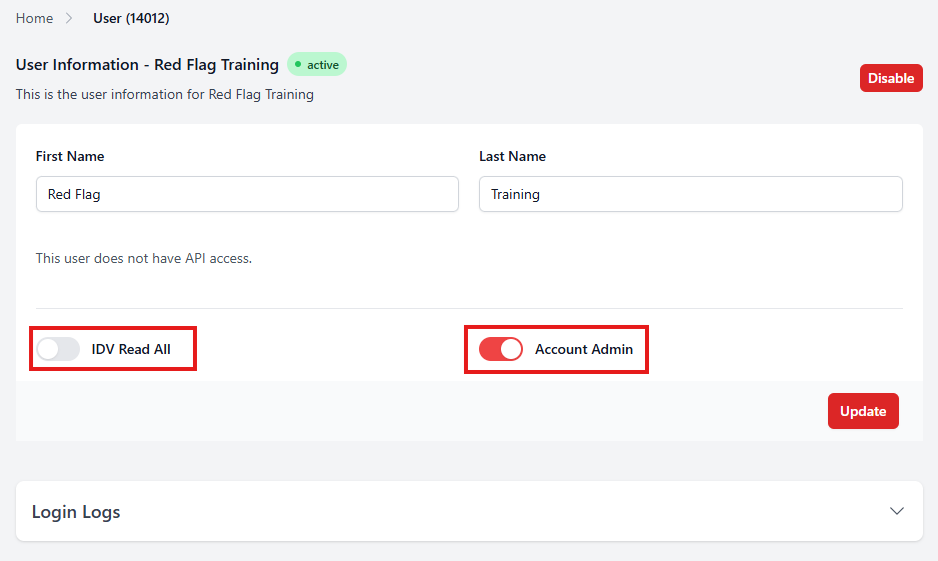
From here, you can :
- Disable the user
- Change their first and/or last name
- Manage their permissions
- View their login log
To manage their permissions, toggle the switch on or off.
IDV Read All: allows a user to view all IDV checks which have been completed on the company's account.
Account Admin: allows a user to manage and add new users. For more guidance, you can view our comprehensive guide Admin User: An Overview.
Once you have completed any changes, click 'Update' to save them.
Was this article helpful?
That’s Great!
Thank you for your feedback
Sorry! We couldn't be helpful
Thank you for your feedback
Feedback sent
We appreciate your effort and will try to fix the article